> For the complete documentation index, see [llms.txt](https://mariadb.com/docs/llms.txt). Markdown versions of documentation pages are available by appending `.md` to page URLs; this page is available as [Markdown](https://mariadb.com/docs/maxscale/maxscale-use-cases/maxscale-trial.md).
# MaxScale Trial
Evaluate MariaDB MaxScale with the free Trial version. Learn about its features and installation steps, limited only by a license key.
MariaDB MaxScale offers a free Trial version with a flexible, license-key based evaluation period. This free version allows users to explore the latest GA features of MaxScale under a [proprietary license](https://mariadb.com/terms/).
Unlike previous versions, access to this trial is now managed via a specific license key. This key determines the duration of your evaluation period, providing a hands-on way to test MaxScale’s capabilities and performance within your environment before committing to an enterprise subscription.
The next section explains how to obtain your license key.
### Getting the License Key
To use MaxScale 25.10.3 Trial mode, you must first obtain a trial license key from the MariaDB Customer Portal. This key validates your trial and determines the duration of your evaluation period.
1. **Log in to MariaDB ID**: Navigate to the [MaxScale Trial License page](https://customers.mariadb.com/license/maxscale-trial/). You will be prompted to sign in with your MariaDB ID. If you do not have an account, you can create one using your email, Google, GitHub, or LinkedIn credentials.
2. **Generate the Key**: Once logged in, follow the on-screen instructions to generate your unique MaxScale Trial license key.
3. **Save the Key**: Copy or download the generated key. You will need to provide this key during the MaxScale configuration process.
### Obtaining MaxScale Trial
MaxScale Trial can be downloaded from the [MariaDB Download](https://mariadb.com/downloads/community/maxscale/) page. Choose the correct version for your OS.
The downloaded file is a tar-package that must be extracted. Create a directory and extract the package into that.
```
mkdir maxscale
cd maxscale
tar -xf path/to/maxscale-25.10.3-trial-release.ubuntu.noble.x86_64.tar
```
The filename will be different for different OSs.
The extracted tar contains 6 packages.
* `maxscale-common_25.10.3~noble-1_amd64.deb`
* `maxscale-trial_25.10.3~noble-1_amd64.deb`
* `maxscale-maxctrl_25.10.3~noble-1_amd64.deb`
* `maxscale-maxctrl2_25.10.3~noble-1_amd64.deb`
* `maxscale-exasol_25.10.3~noble-1_amd64.deb`
Also these filenames will be different depending on the OS.
* `maxscale-common` contains common components used by the other packages, except for `maxscale-maxctrl`.
* `maxscale-trial` contains *MaxScale* itself.
* `maxscale-maxctrl` contains *maxctrl*, a [Node.js](https://nodejs.org/en) based command line tool for managing *MaxScale*.
* `maxscale-maxctrl2` contains *maxctrl2*, which provides the same functionality as *maxctrl*, but is a native application.
* `maxscale-exasol` contains [exasolrouter](/docs/maxscale/reference/maxscale-routers/maxscale-exasolrouter.md), a router capable of routing to [Exasol](https://www.exasol.com/).
### Installing MaxScale Trial
**NOTE** If you have an earlier MaxScale Trial version, please uninstall it first.
Enter the directory where the tar-package was extracted and execute on a Debian based system
```
sudo apt install ./*.deb
```
and on a RedHat based system
```
sudo dnf install ./*.rpm
```
When the MaxScale Trial package has been installed, a template MaxScale configuration file will be copied to `/etc/maxscale.cnf.template` and `/etc/maxscale.cnf`; the former for reference and the latter for actual use. The configuration file has been written with the assumption that a MariaDB server is running on the same machine where MaxScale is installed.
Before starting MaxScale, the license key must be specified and the database users needed by MaxScale must be created.
#### Configuring the License Key
Open `/etc/maxscale.cnf` and add a `license_key` entry to the `[maxscale]` section.
```
[maxscale]
...
license_key=...
```
The value of `license_key` can either be the license key itself or the *absolute* path to a file containing the license.
**NOTE** If the license is read from a file, it must be readable by the user `maxscale`.
#### Database Users used by MaxScale
MaxScale needs two database users for its own use; one user used by a MaxScale [service](/docs/maxscale/maxscale-management/deployment/installation-and-configuration/maxscale-configuration-guide.md#service) for fetching user account information and another user used by the MaxScale [monitor](/docs/maxscale/maxscale-management/deployment/installation-and-configuration/maxscale-configuration-guide.md#monitor) for monitoring the health of the MariaDB server and for performing operations on it. The same user can be used for both purposes, provided the user has all the grants needed by services and monitors.
In the following, the host is specified using '%', which means that MaxScale can access the server from anywhere. In a non-trial context, it is advisable to use the specific IP where MaxScale is running.
If you use the same user names and passwords - that is, `service_user/service_pw` and `monitor_user/monitor_pw` - you do not need to modify `/etc/maxscale.cnf`. Otherwise the user names and passwords must be updated accordingly.
**Service User**
The service user can be created with the following commands, executed using the mariadb command line utility.
```sql
CREATE USER 'service_user'@'%' IDENTIFIED BY 'service_pw';
GRANT SELECT ON mysql.user TO 'service_user'@'%';
GRANT SELECT ON mysql.db TO 'service_user'@'%';
GRANT SELECT ON mysql.tables_priv TO 'service_user'@'%';
GRANT SELECT ON mysql.columns_priv TO 'service_user'@'%';
GRANT SELECT ON mysql.procs_priv TO 'service_user'@'%';
GRANT SELECT ON mysql.proxies_priv TO 'service_user'@'%';
GRANT SELECT ON mysql.roles_mapping TO 'service_user'@'%';
GRANT SELECT ON mysql.global_priv TO 'service_user'@'%';
GRANT SHOW DATABASES ON *.* TO 'service_user'@'%';
```
**Monitor User**
Creating the monitor user is more complicated, because the required GRANTs depend both on what monitor is used and on the exact server version. The GRANTs needed by the MariaDB Monitor, used for monitoring a regular MariaDB primary/replica cluster can be found [here](/docs/maxscale/reference/maxscale-monitors/mariadb-monitor.md#required-grants), but for initial testing the user can be given blanket rights:
```sql
CREATE USER 'monitor_user'@'%' IDENTIFIED BY 'monitor_pw';
GRANT ALL ON *.* TO 'monitor_user'@'%';
```
In a non-trial context, the monitor user should be granted only the GRANTs it really needs.
#### Configuring the REST-API
The command line utility `maxctrl` and the web UI *MaxGUI* communicate with MaxScale using a REST-API. By default, MaxGUI requires that TLS is enabled and it is configured as explained [here](/docs/maxscale/maxscale-security/securing-your-maxscale-deployment.md#secure-gui-and-admin-interface-connections).
Alternatively, the requirement of TLS can be turned off by adding the entry
```
admin_secure_gui=false
```
to the `[maxscale]` section in the MaxScale configuration file.
Please note that unless TLS is configured, your administrative credentials will be exposed in plain text over the network. Not using TLS should only be in a trial context in a controlled environment.
#### Starting MaxScale Trial
Once the database users have been created, MaxScale Trial can be started.
```bash
sudo systemctl start maxscale.service
```
If no errors are shown by the command, which indicates that MaxScale started, the error log of MaxScale should be checked.
```bash
sudo cat /var/log/maxscale/maxscale.log
```
If there are no error entries, MaxScale is running and can be used.
**Smoketests**
With the following command it can be checked that MaxScale can connect to the server
```bash
maxctrl list servers
```
and with the following command that the service is running
```bash
maxctrl list services
```
If TLS has been configured, the secure mode must be enabled with the flag `--secure` and the relevant parameters provided using the `--tls...` flags. Invoke `maxctrl` with the flag `--help` for the details.
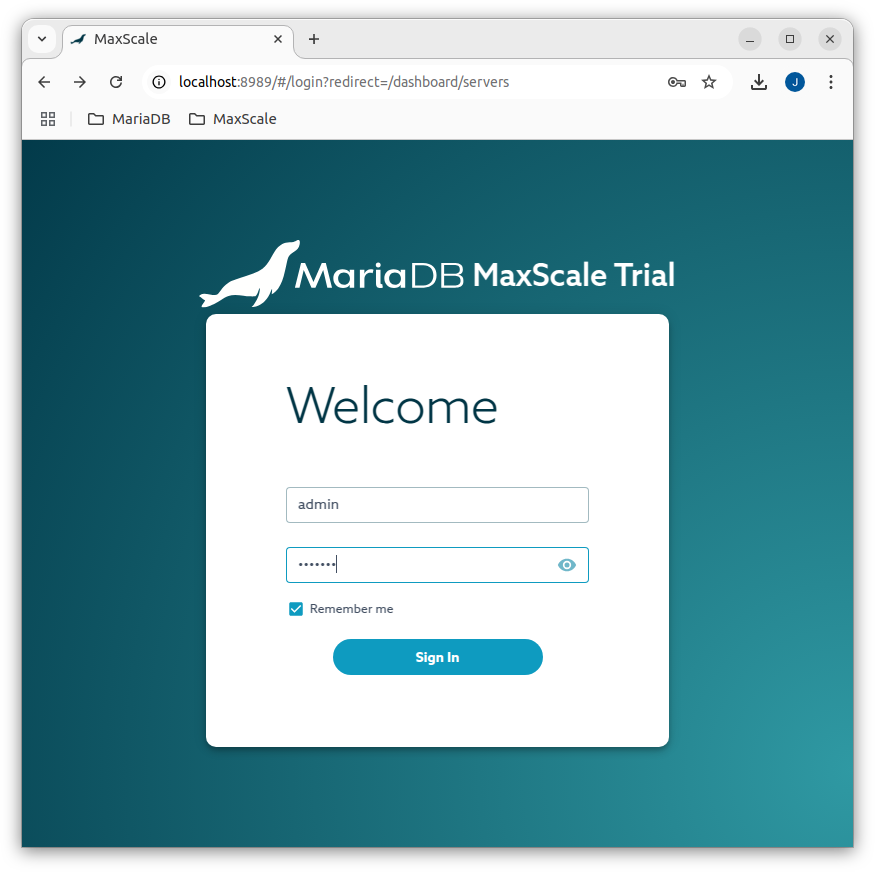
After that the web-browser can be pointed to `http://127.0.0.1:8989`. Logging in is done using the username `admin` and the password `mariadb`. If TLS has not been disabled by the setting `admin_secure_gui=false`, `https` must be used.
Note that by default MaxScale listens only on the interface 127.0.0.1, which means that you must access MaxScale from the same machine on which MaxScale is running. If you want to access MaxScale over the network, you need to add
```bash
admin_host=0.0.0.0
```
to the `[maxscale]` section in `/etc/maxscale.cnf`.